.png)
Administering your Auto-Attendant can be done in the Zoom Web Portal and is similar to your personal settings. ITS staff can help manage members for your department if these individuals change. The instructions below provide guidance on how to navigate to your Auto-Attendant and the essential settings you want to manage.
-
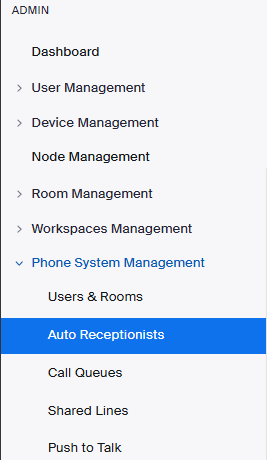
Use a browser to reach the Zoom Web Portal. If access is granted for you, you will notice an Admin feature on your left-hand toolbar underneath your personal settings. Auto attendants can be found under ‘Phone System Management’. This will display the numbers you currently administer.
-
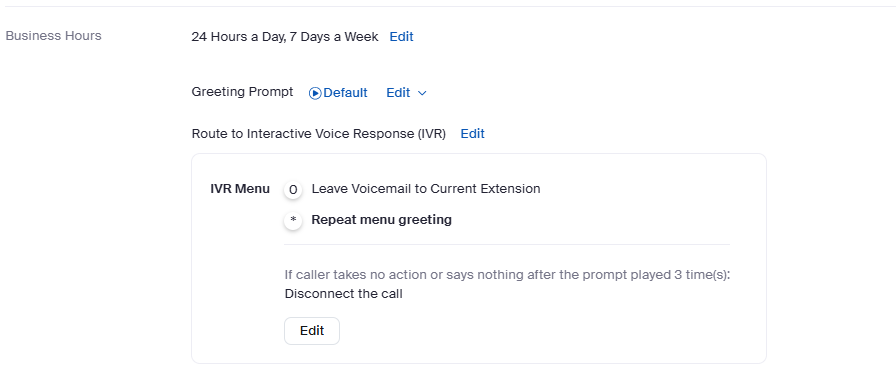
Similar to your personal settings you can set call flows for open, closed, and holiday hours. Each can consist of their own greeting and parameters. Click ‘Edit’ within the IVR menu box to display your caller input and voicemail greeting options.
-
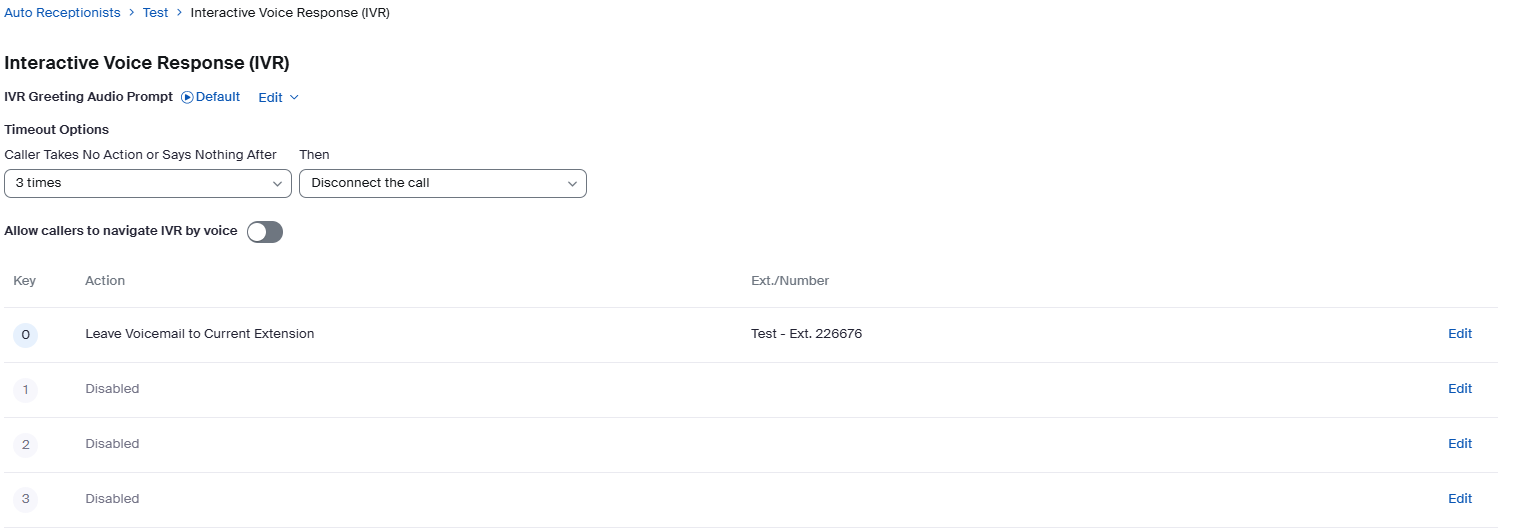
Once in your IVR menu, use the audio prompt option at the top to manage your preferred greeting. You can upload something pre-recorded, record by computer, or use Text-to-Speech.
Additional settings available by your IT Administrator. Please open an ITS request for these services to be activated and properly configured.
-
Voicemail membership
-
Voicemail delivery to a generic email or mailer
-
SMS (Texting) Services
-
Faxing