.png)
Matlab Installation
-
On a UNC Asheville computer Matlab can be installed from Software Center or Self Service.
-
For installation on a personal device please visit Mathworks.com and proceed by clicking the “Sign In” link at the top of the page.
-
Enter your UNCA Email address into the sign in window and proceed through the UNC Asheville Single Sign On process.
-
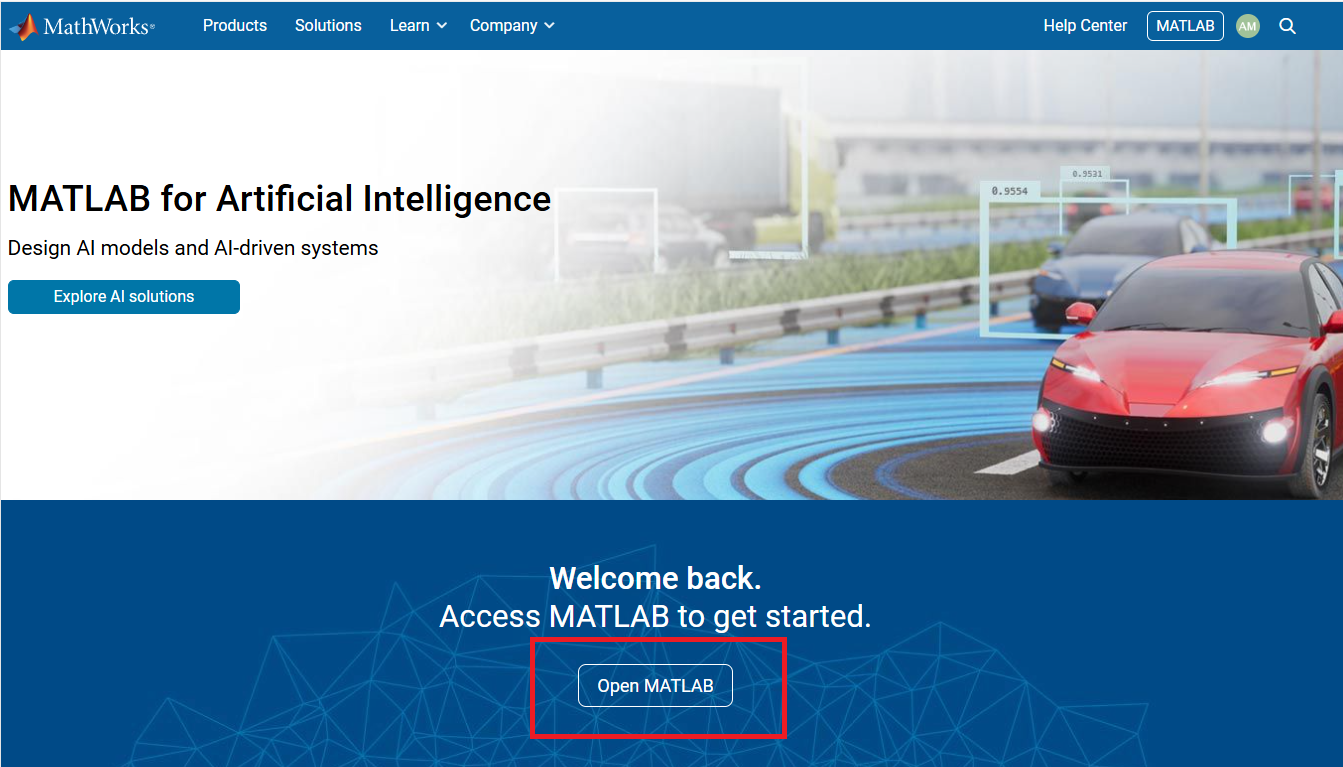
Choose the “Open MATLAB” link in the center of the screen
-
On the next page, chose the link to “Install Matlab” at the top of the screen.
-
Download the version of Matlab you wish to use with your operating system and proceed with the installation by launching the downloaded file.
-
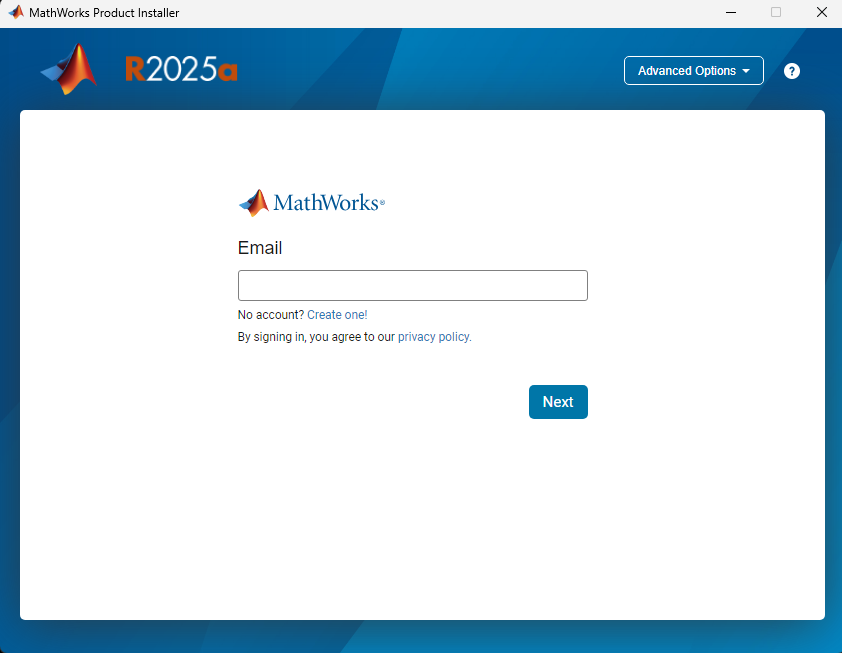
When Prompted by the installer, enter your UNC Asheville email address to proceed. Proceed through the UNC Asheville Single Sign On process.
-
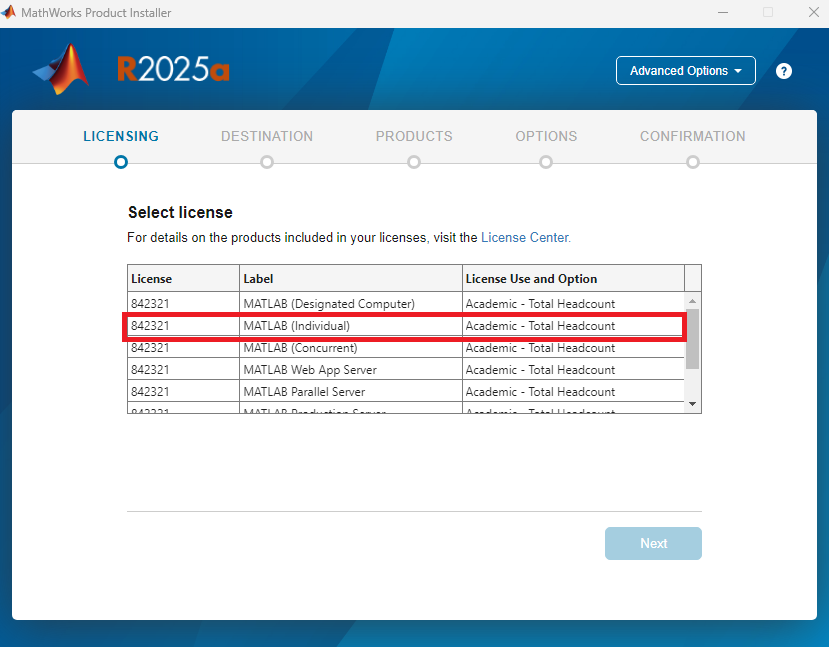
Proceed with the installation. On the Select License screen, chose the MATLAB (Individual) license.
-
Proceed with the installation selecting the Destination, products, and options that suit your needs.
Signing Into Matlab
All UNCA Faculty, Staff, and Students have access to a Matlab license which is associated with your UNC Asheville account. You can sign into Matlab on your university computer, a public or classroom computer, or your personal computer using the UNC Asheville Single Sign On Process.
-
Launch Matlab on the computer you wish to use
-
When Prompted, enter your UNC Asheville email address and proceed with the SSO process.
-
Matlab is now active and can be used offline for several weeks without needing to sign in again.
-
If you are using a public or classroom computer, please proceed below to sign out of Matlab before leaving the computer.
Signing Out Of Matlab
If using a public or classroom computer please sign out when you finish using Matlab. This will allow your license to be used elsewhere and allow the next user to sign in.
-
Click your name at the top right corner of the Matlab window and chose “Sign Out”
-
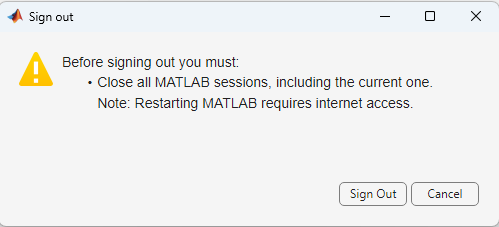
The below prompt will appear.
-
Close all Matlab windows that are open aside from the prompt before clicking “Sign Out” on the prompt window. Note: Matlab windows will be behind the prompt.