.png)
In order to sign up for your free Confluence account, you’ll need to visit their site at:
https://www.atlassian.com/software/confluence
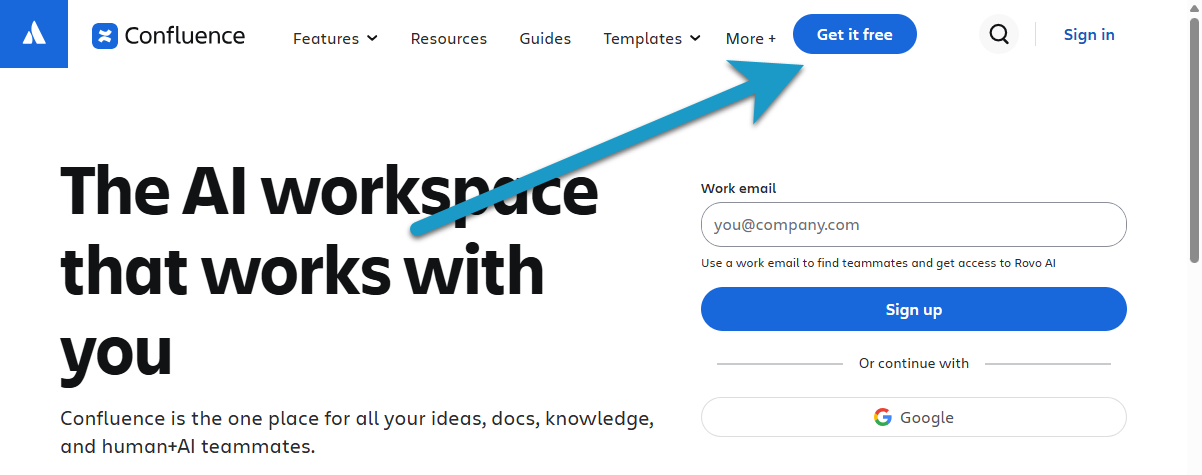
Next click on the “Get it Free” button in the top right.
You will need to then sign in with your UNC Asheville email address.
This will not be connected to your current password. You will create a new password shortly!
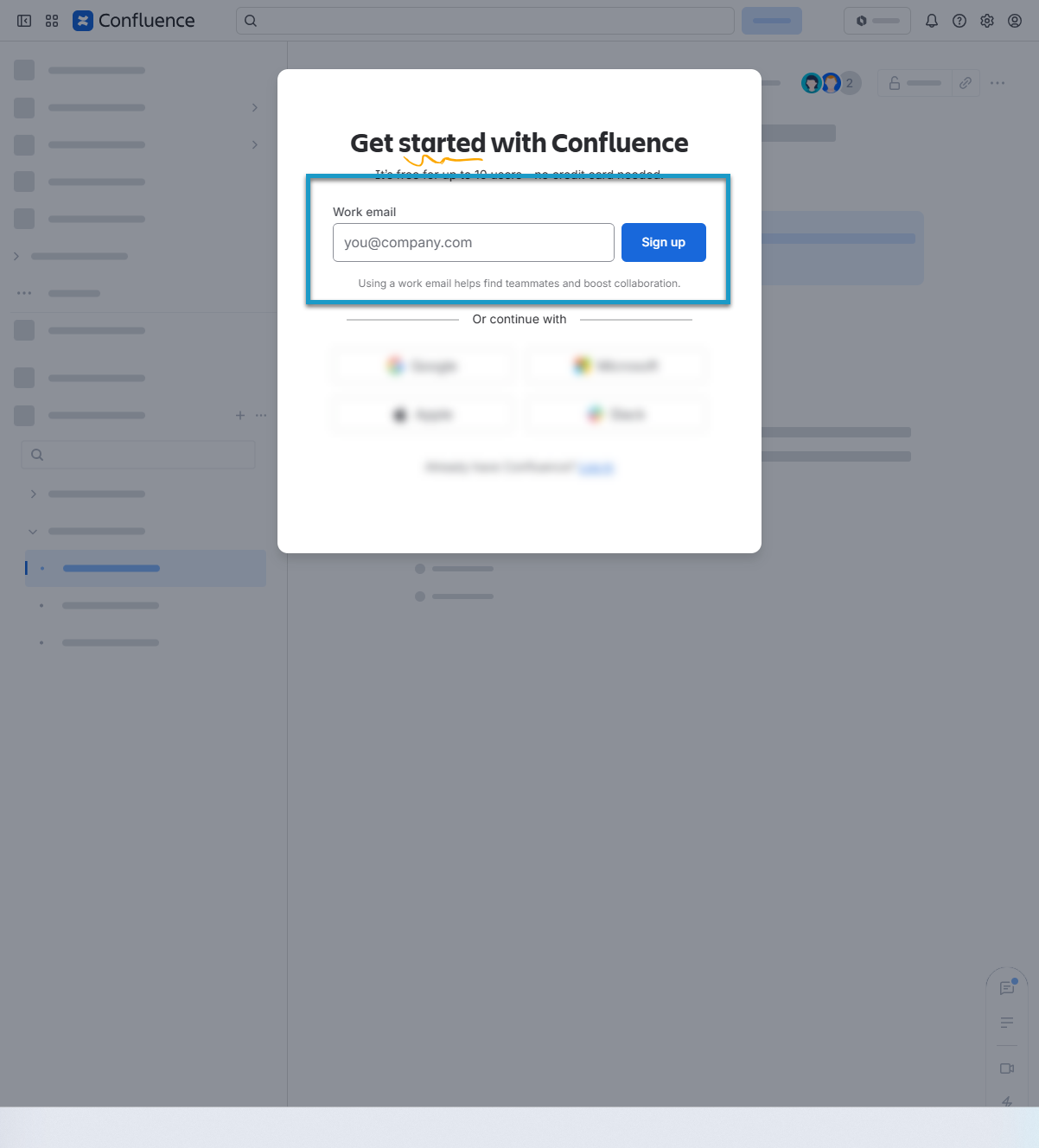
Please note that you cannot use any of the buttons below to sign up. You must type your email address.
You will be prompted to create a password, and verify your email address with a alphanumeric code.
You may be prompted to pick an existing workspace. However, please click on the “Create a new workspace” below that!
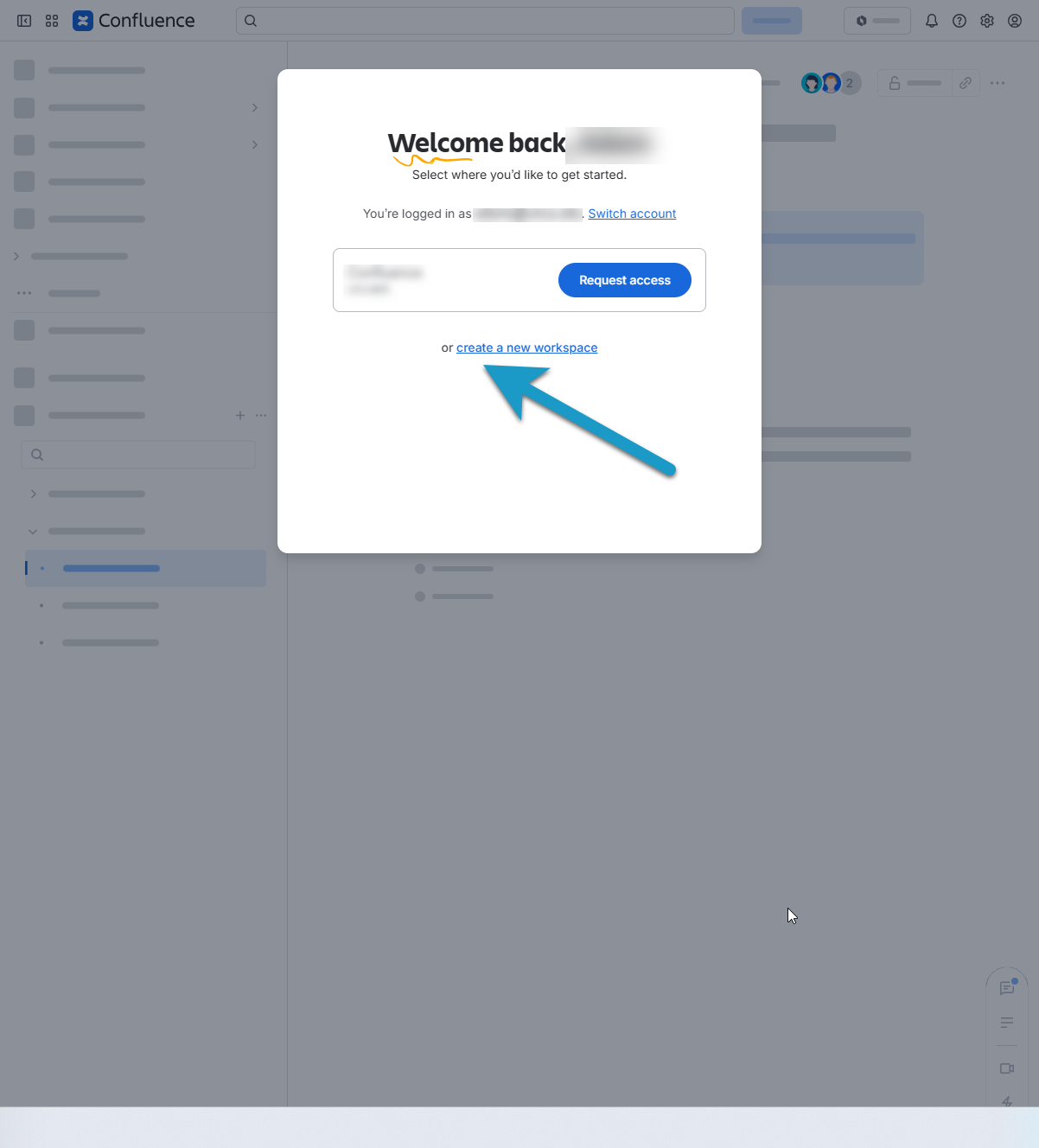
You must create a new workspace in order to have spaces of your own!
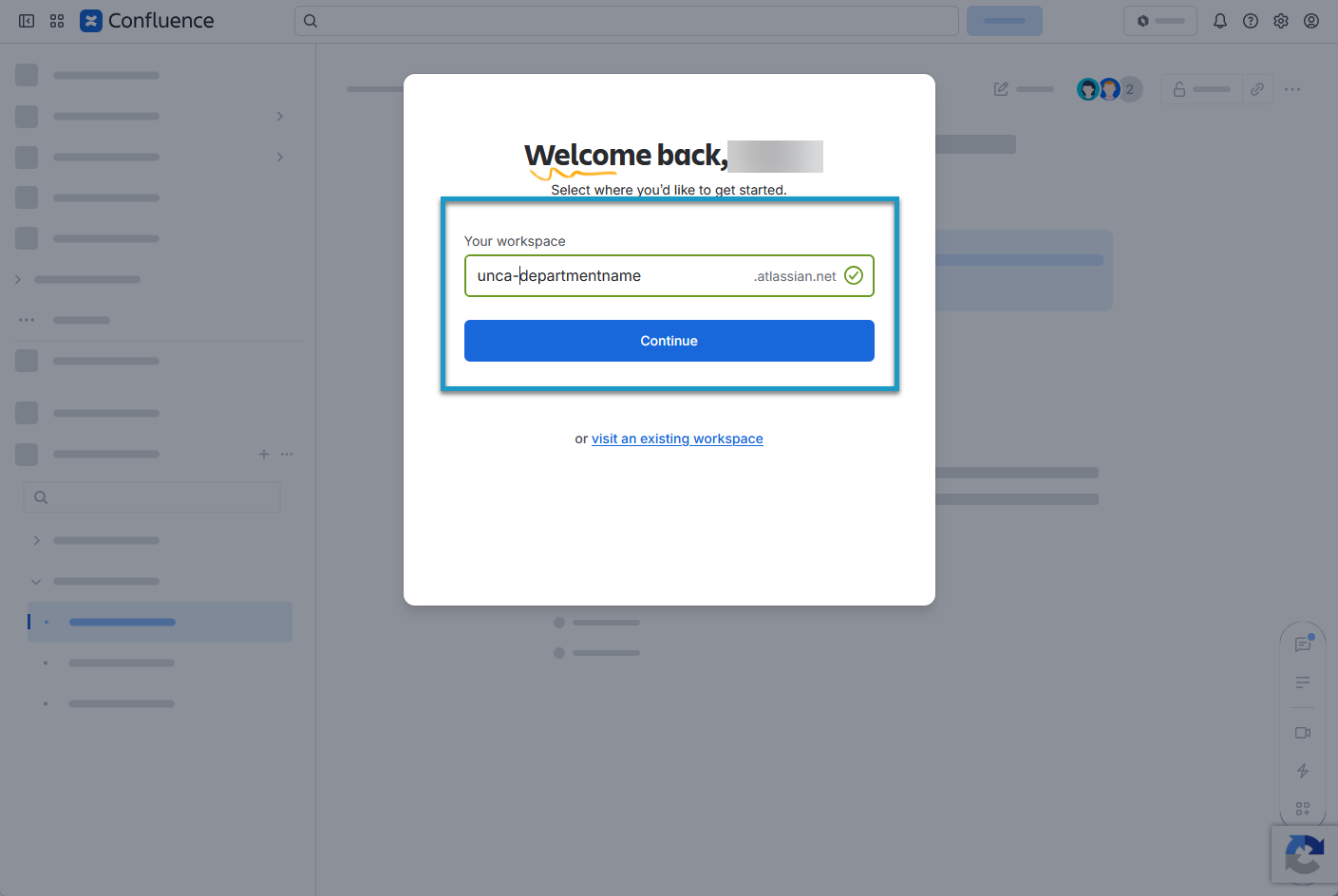
Pick a descriptive name for your Confluence address (hosted by atlassian.net)
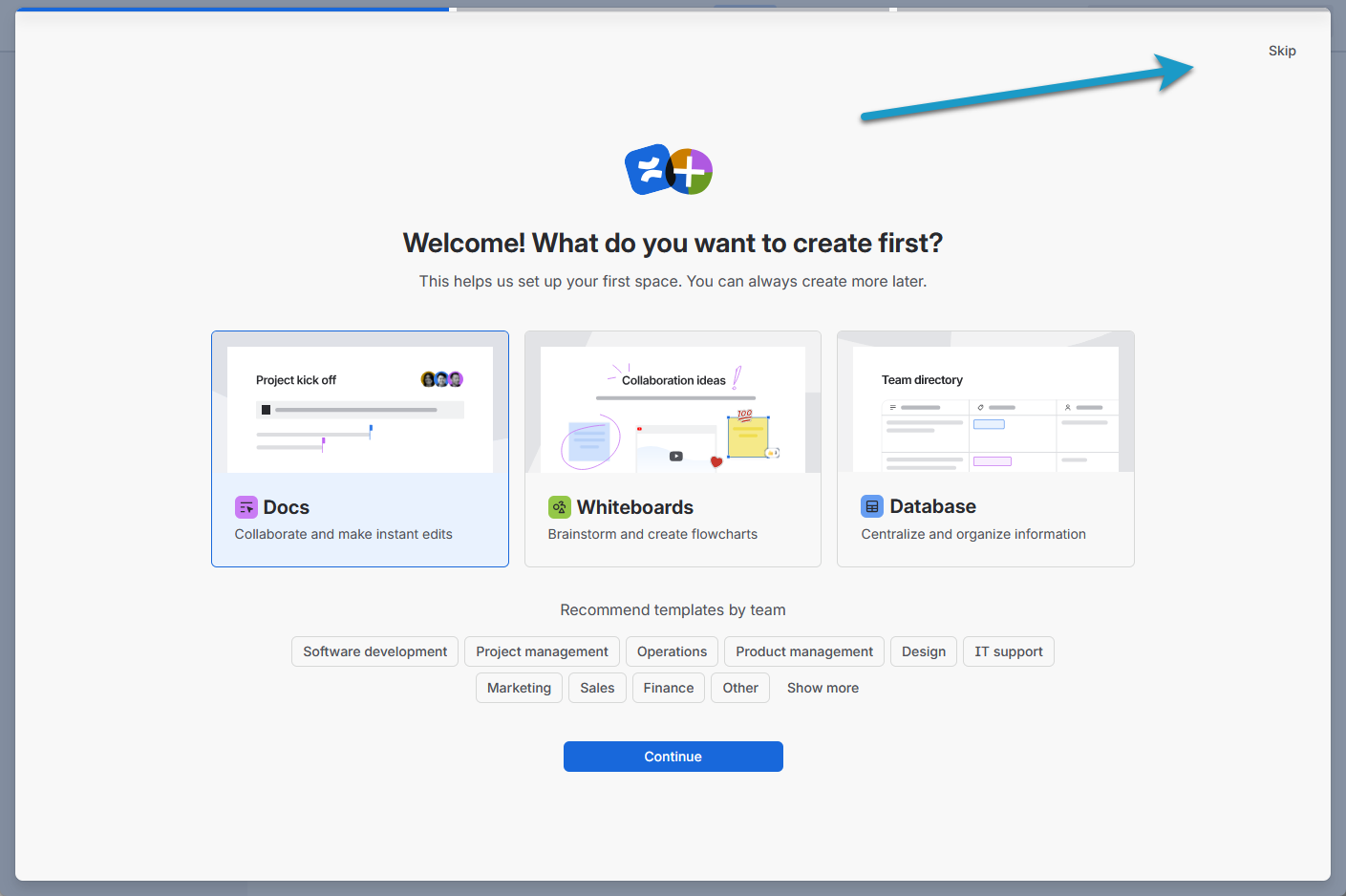
You may be prompted to start a template based on the type of spaces you intend to use. You may skip this in the upper right corner.
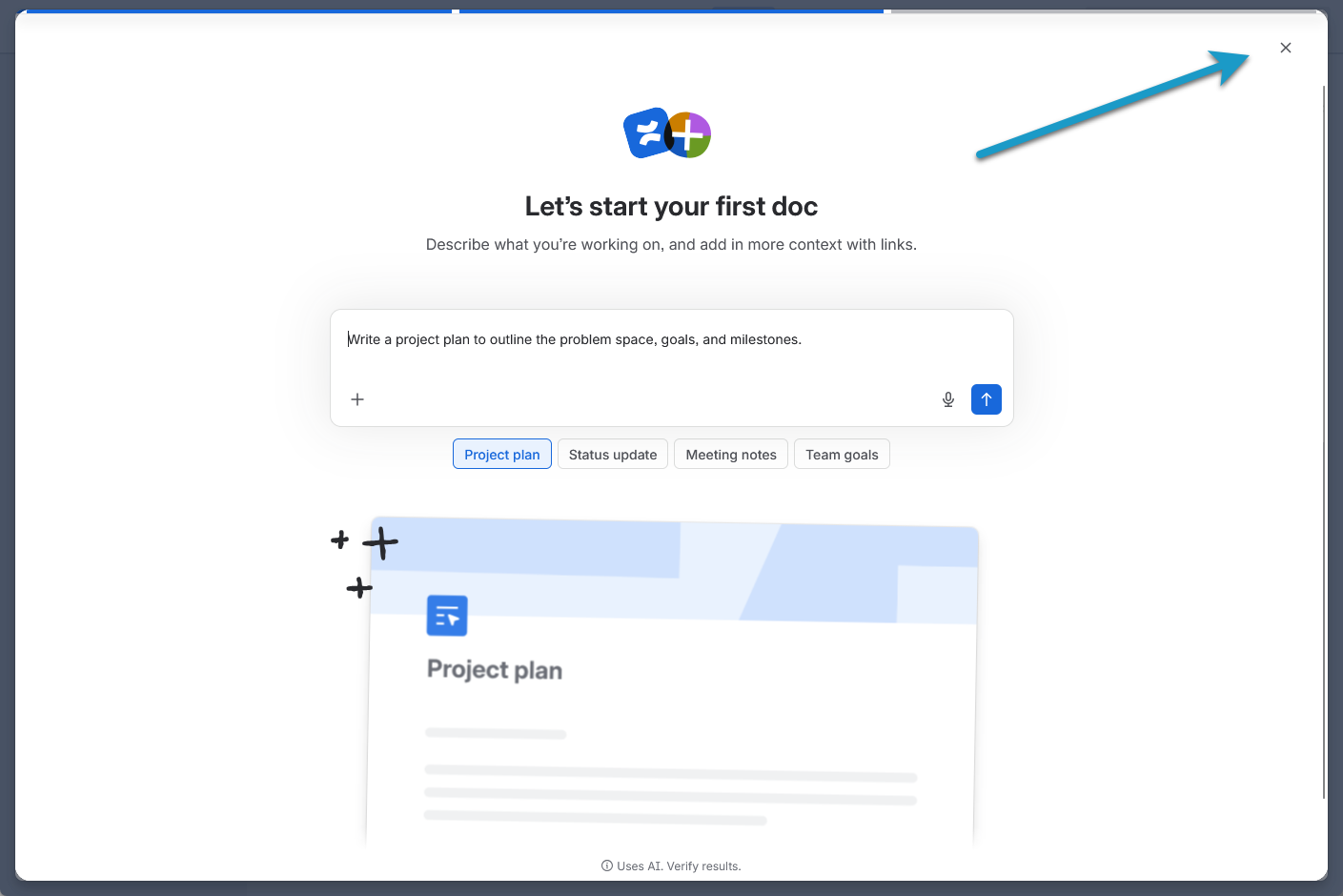
You may also be prompted to start your first document. This may also be skipped in the top right corner with the “X”.
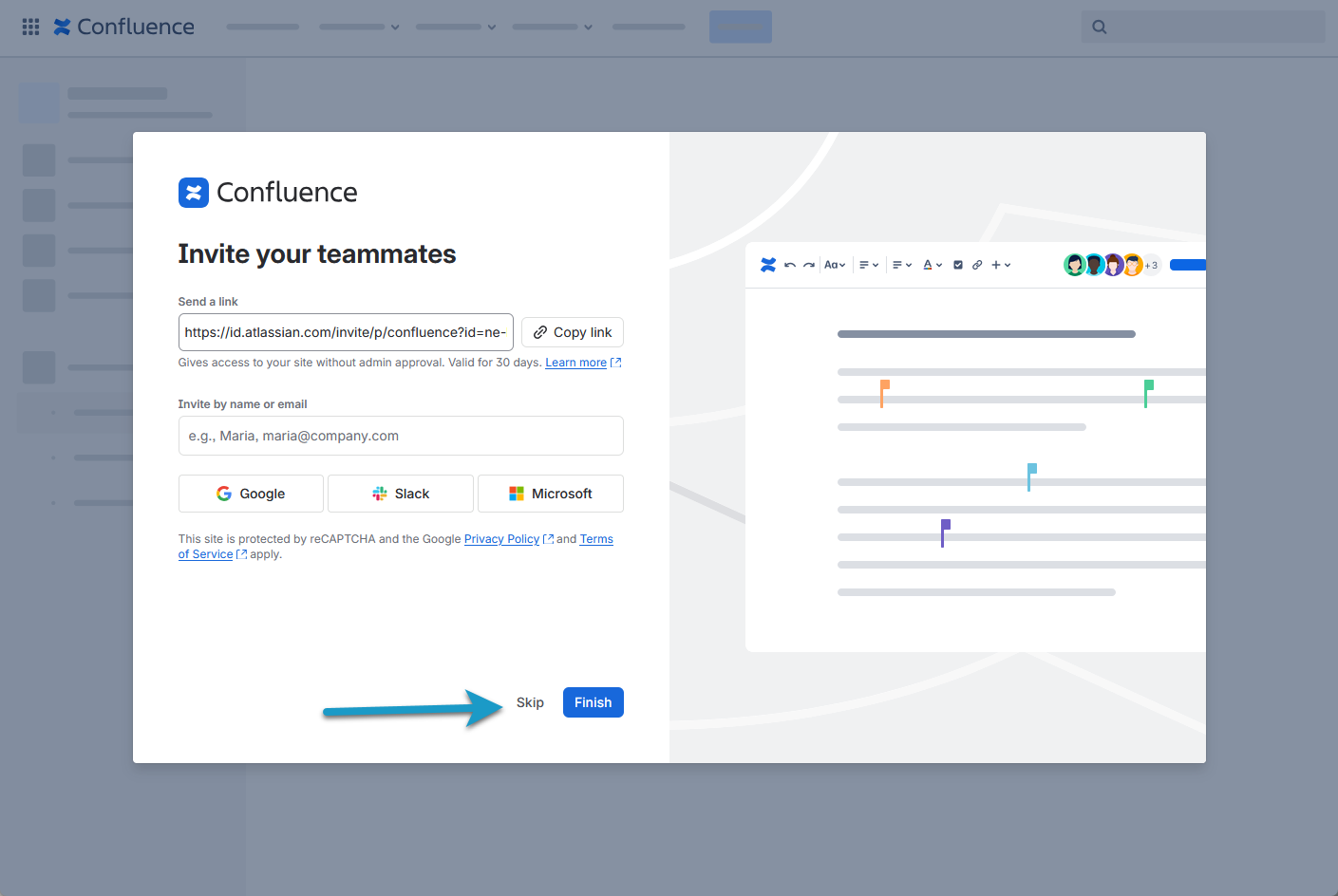
And finally you may be prompted to invite others to your new Confluence. Once ready use the buttons at the bottom middle to wrap up the initial setup.
You will now see the main Confluence window.
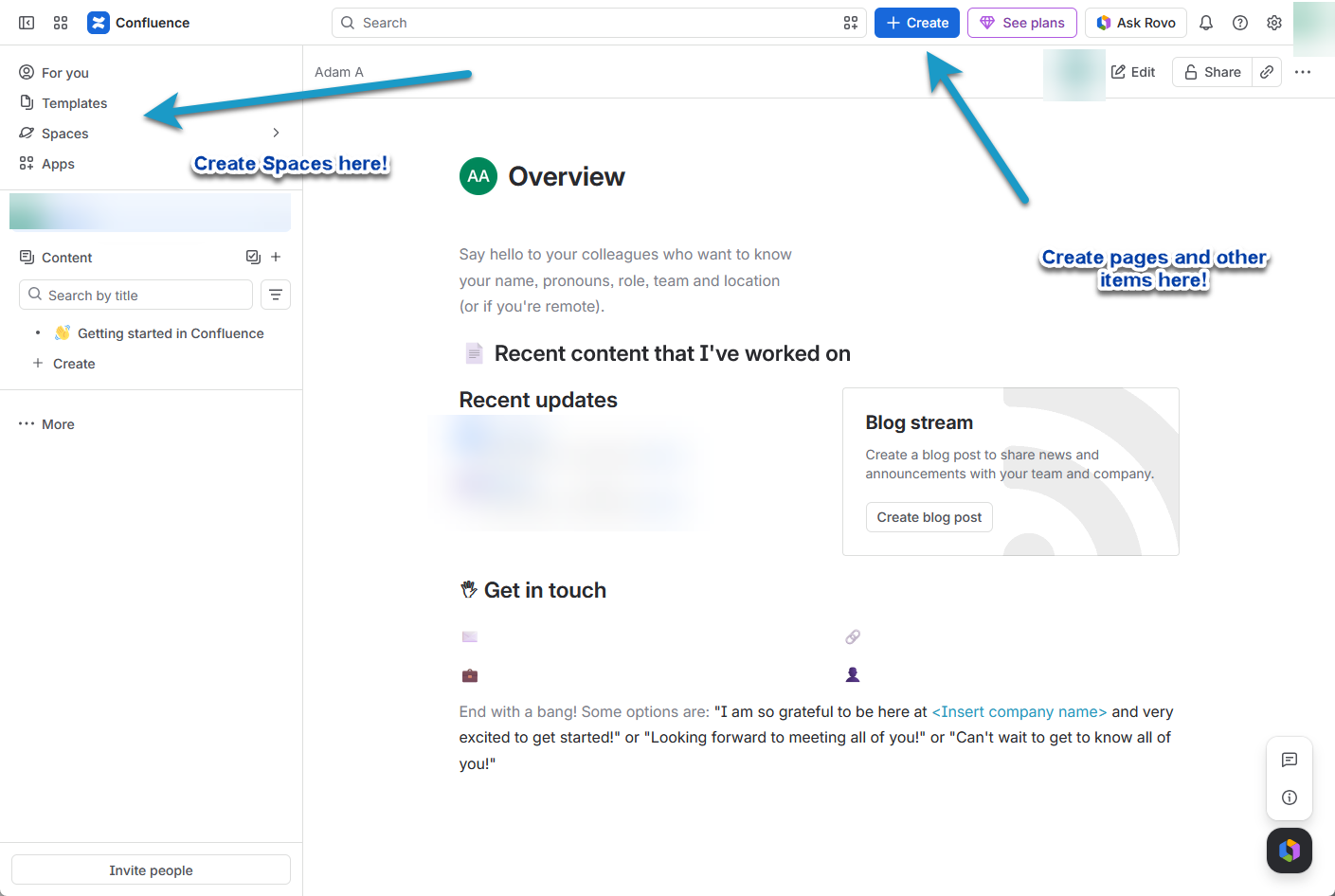
From here you can access the Create menu at the top middle. This allows you to create new top level pages, as well as other document types.
On the left hand menu you will see your navigation. This allows you to move between spaces you’ve created, and various pages within those spaces.