.png)
Epayments Authorized User Access
For more help visit Student Accounts' website:
https://studentaccounts.unca.edu/pay-your-bill-and-loans/payment-options/
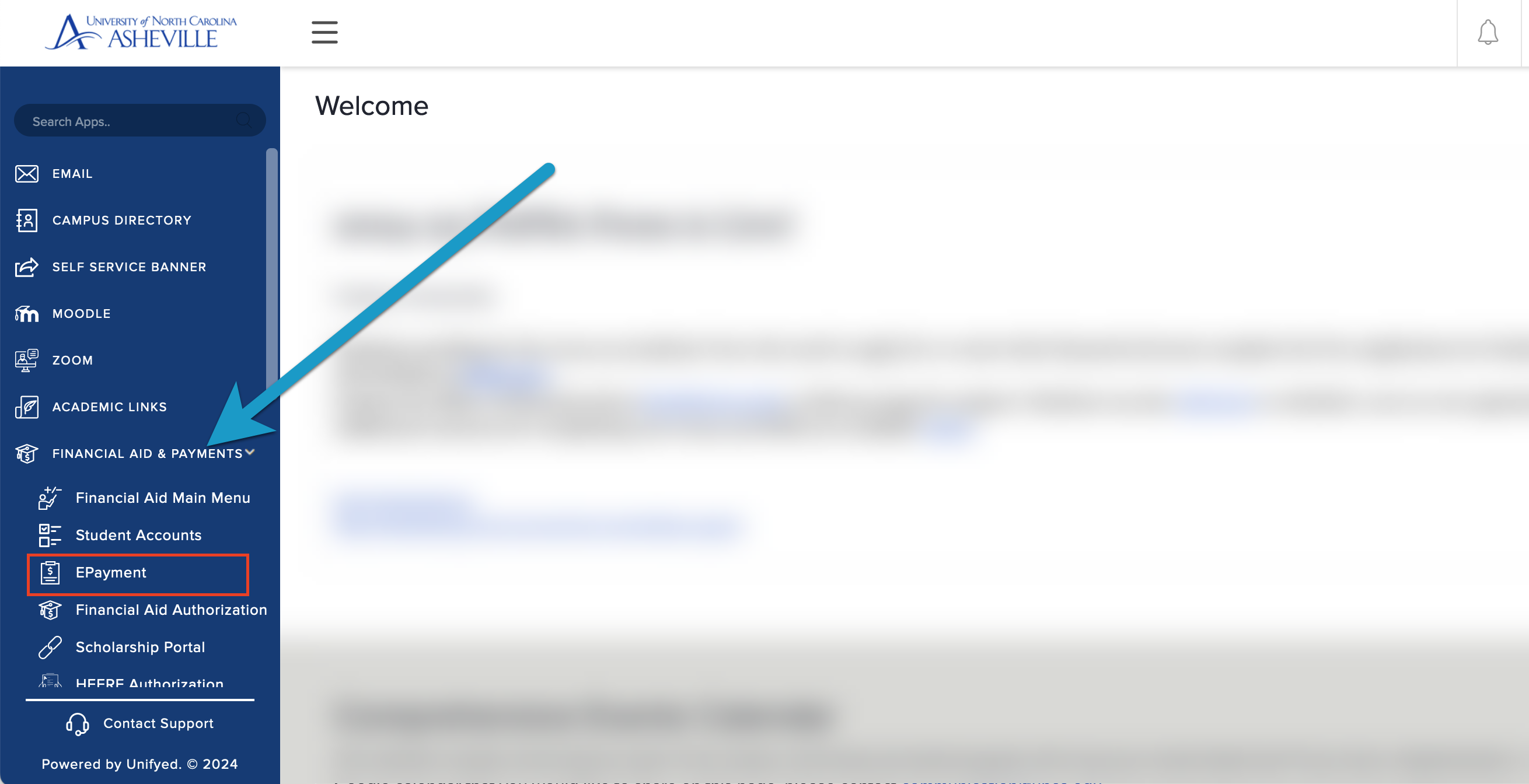
Once logged into Oneport, the user should expand Financial Aid and Payments, then click ePayment
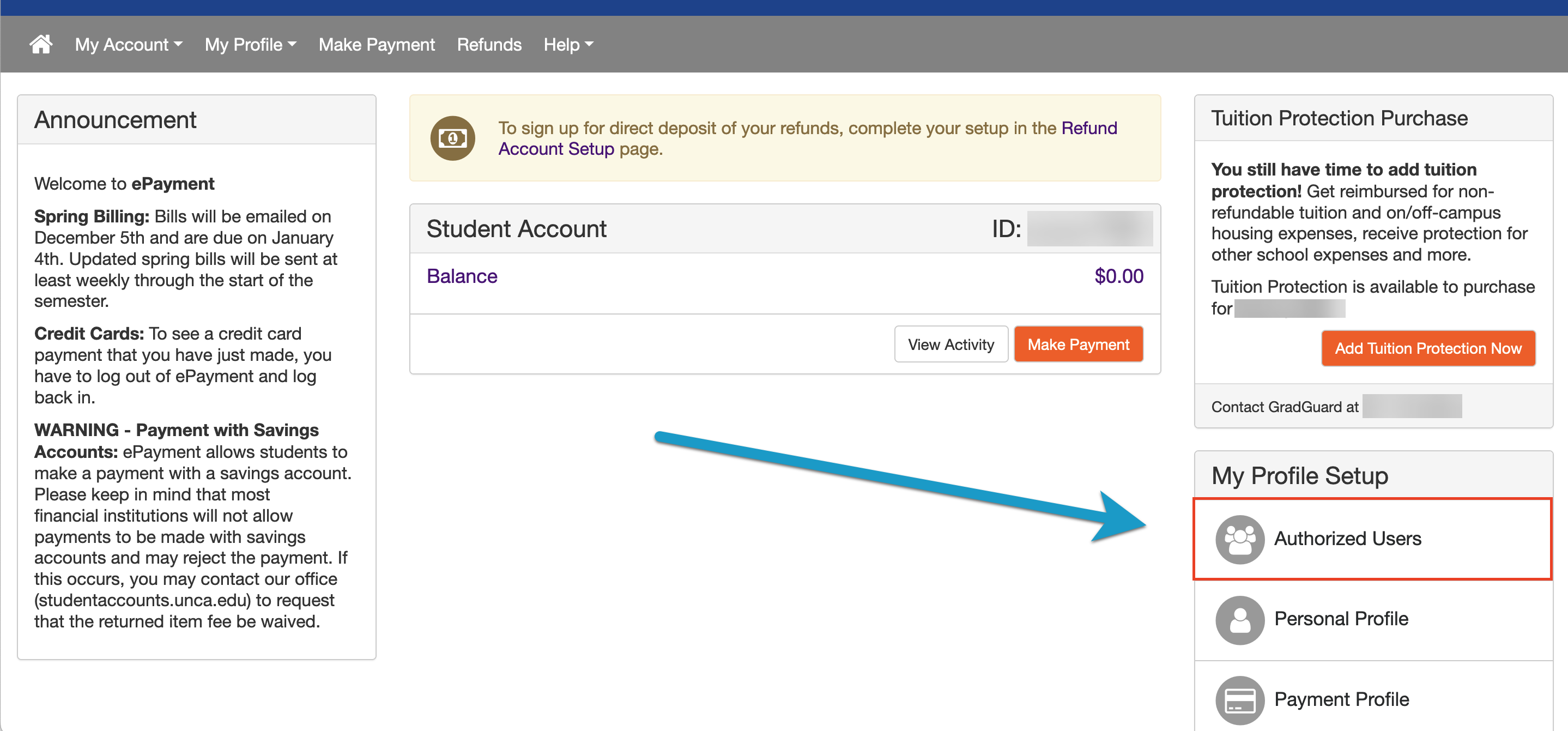
This will bring up the ePayment portal. To establish an authorized user, click "Authorized User"
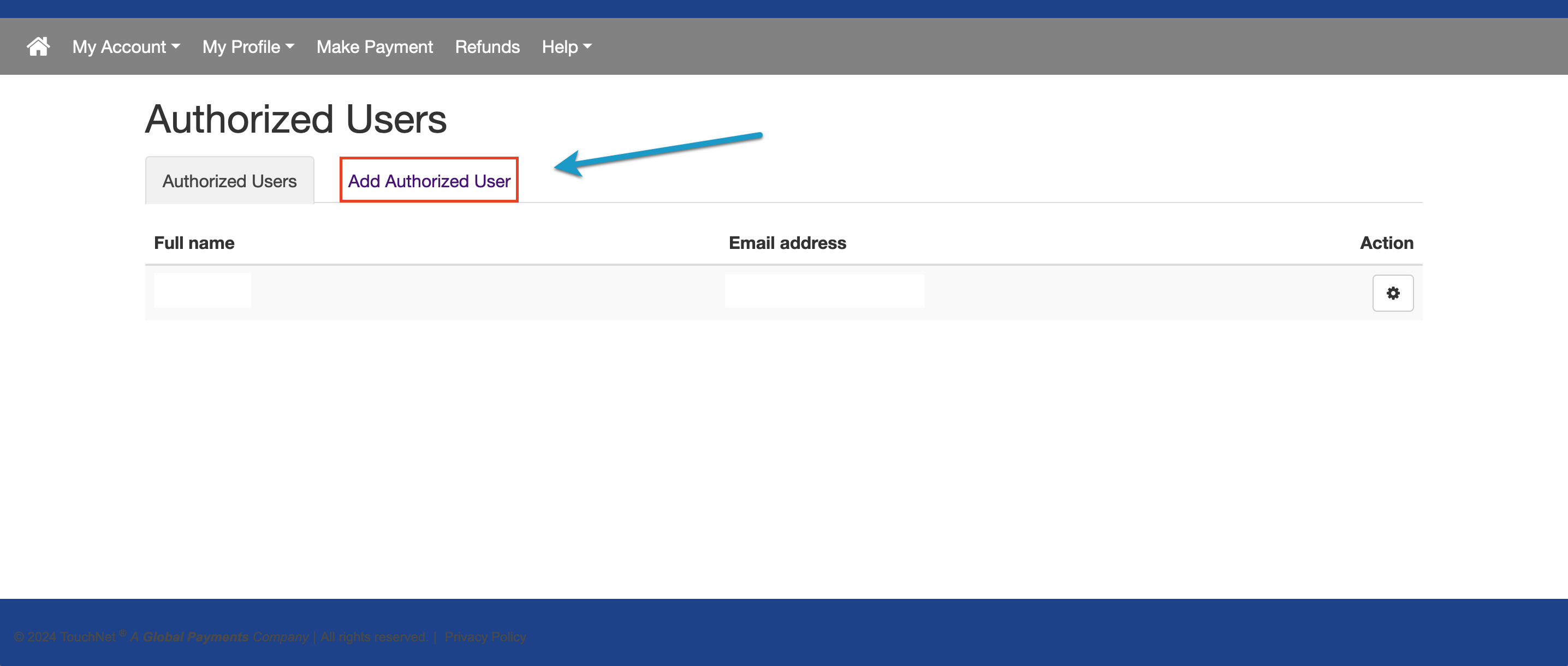
Then click "Add Authorized User"
Fill out the data, click continue and accept the terms and conditions.
Note: This process only requires the email address of the authorized user. Additionally, doing this will not necessarily generate a notification email to the entered email address.
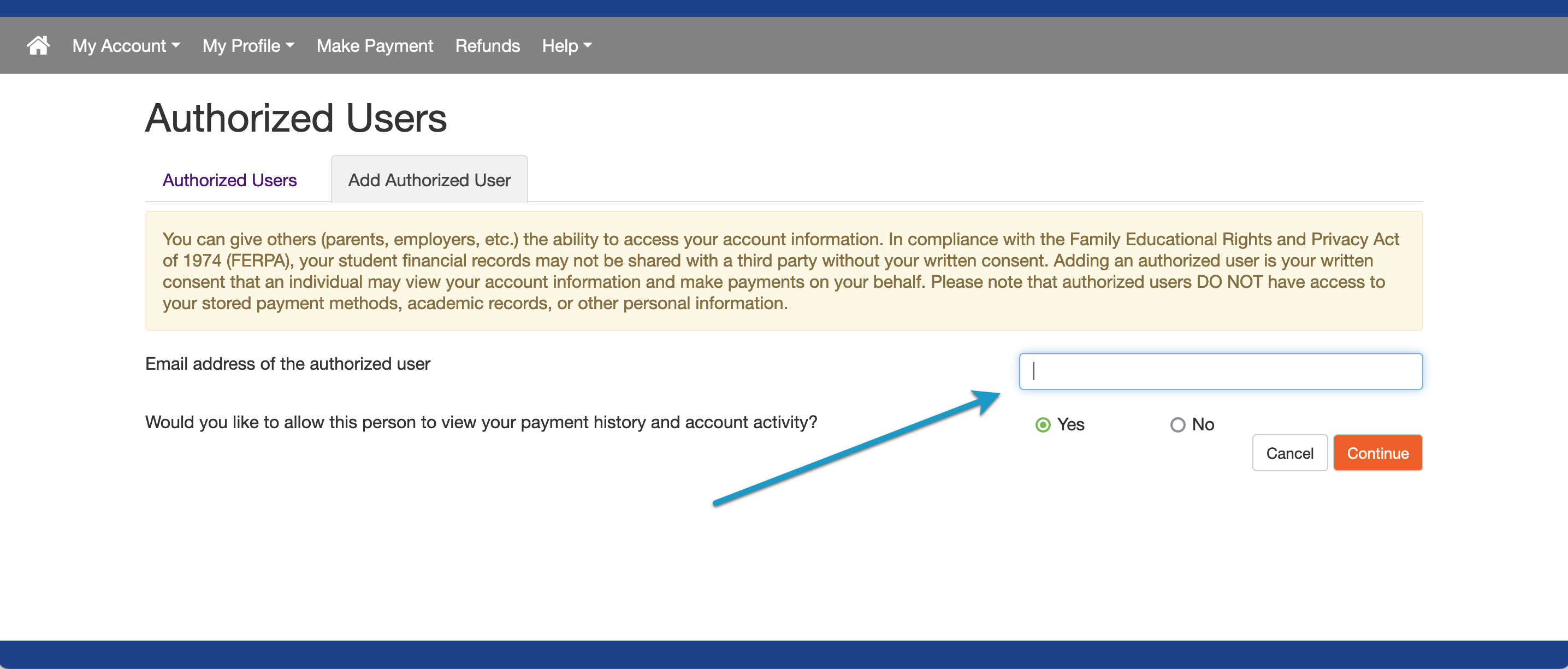
This will authorize the proxy to log in as an authorized user.
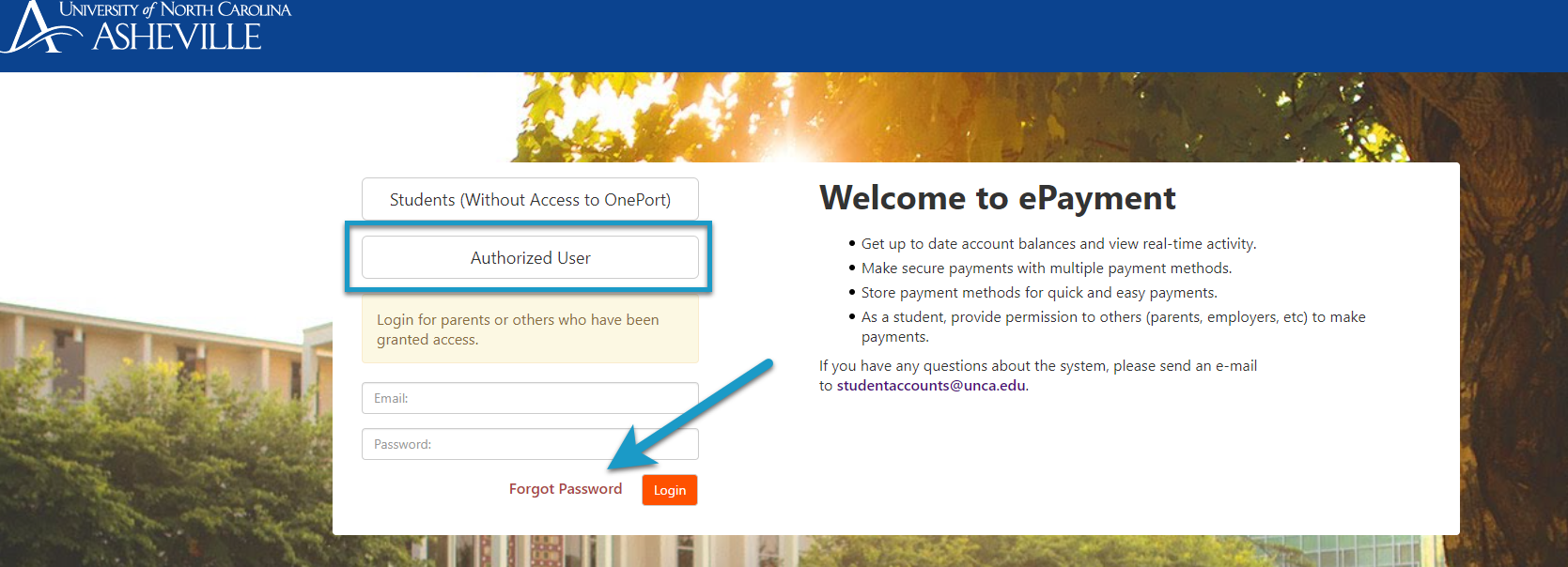
They will now need to change their password at the Authorized User Login. To get to the authorized user login, go to: https://studentaccounts.unca.edu/pay-your-bill-and-loans/payment-options/ and click “Authorized Users Login Page”.
Once there, the proxy needs to enter their email address, and click forgot password. The site will send the proxy an email with a temporary password and they will then be able to log in and create a new password.