.png)
IT Knowledgebase: How to Use the Phish Alert Button (PAB) in Gmail
The KnowBe4 Phish Alert Button (PAB) is a built-in security tool that allows you to instantly and safely report suspicious emails to the ITS Security Team with just a couple of clicks.
Reporting a potential phish immediately deletes the message from your inbox, prevents you from accidentally clicking malicious links, and helps defend the entire campus community.
Below are the step-by-step instructions for using the PAB on desktop and mobile devices.
💻 Desktop (Gmail Web Browser)
If you are using Gmail on a PC, Mac, or Chromebook web browser, use the following steps:
Trash folder, and a copy will be safely forwarded to ITS Security for analysis.
-
If you suspect an email you received to be suspicious, Stop, Do not reply or open any attachments..
-
Look at the right-hand side panel of your Gmail screen. You will see a vertical list of icons.
-
If the right-hand side panel is missing click the gray semi-circle with the white arrow in the bottom right of Gmail to expand it!
-
-
Click the Phish Alert icon (the orange fishhook)

-
A side panel will open.
-
If prompted, you can optionally add any notes or details about why the email looks suspicious to you.
-
Click the blue Phish Alert button to confirm.
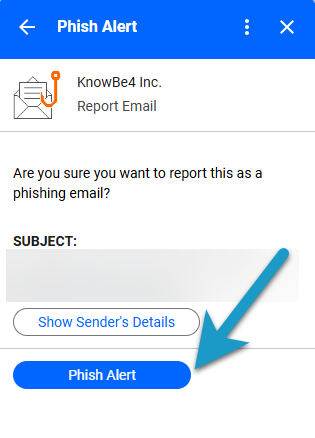
Success! The email will automatically be moved to your Trash folder, and a copy will be safely forwarded to ITS Security for analysis.
📱 Mobile App (Gmail for Android & Apple iOS)
The Phish Alert Button is fully integrated into the official Gmail mobile app.
⚠️ Important Note: Native mail applications (such as Apple Mail on iPhone/iPad or Samsung Email on Android) do not support the Phish Alert Button. To use this tool on a mobile device, you must use the official Gmail app.
To report an email on your phone or tablet:
-
If you suspect an email you received to be suspicious, Stop, Do not reply or open any attachments.
-
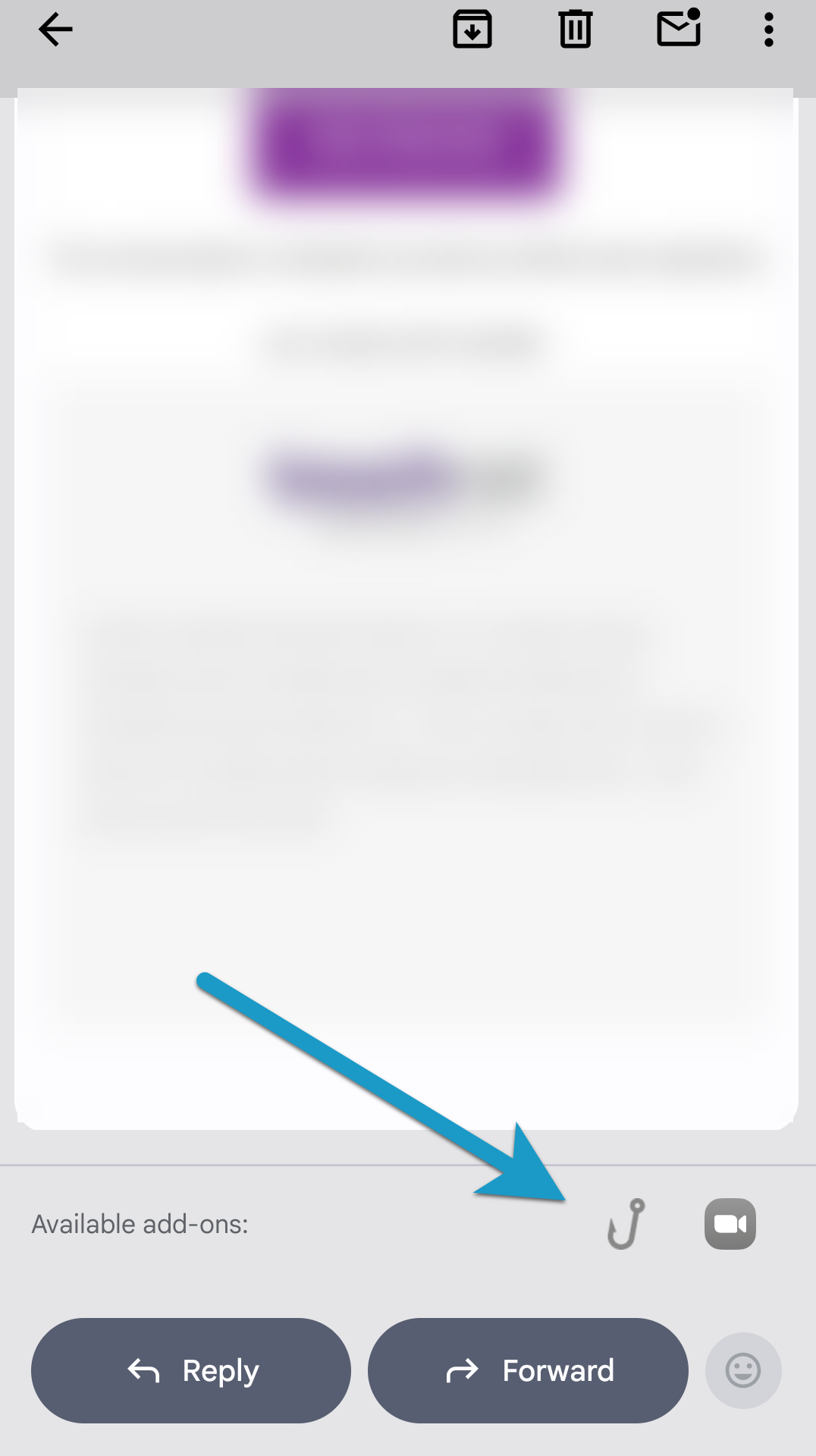
Scroll all the way to the very bottom of the email (past the email body, signatures, and attachments).
-
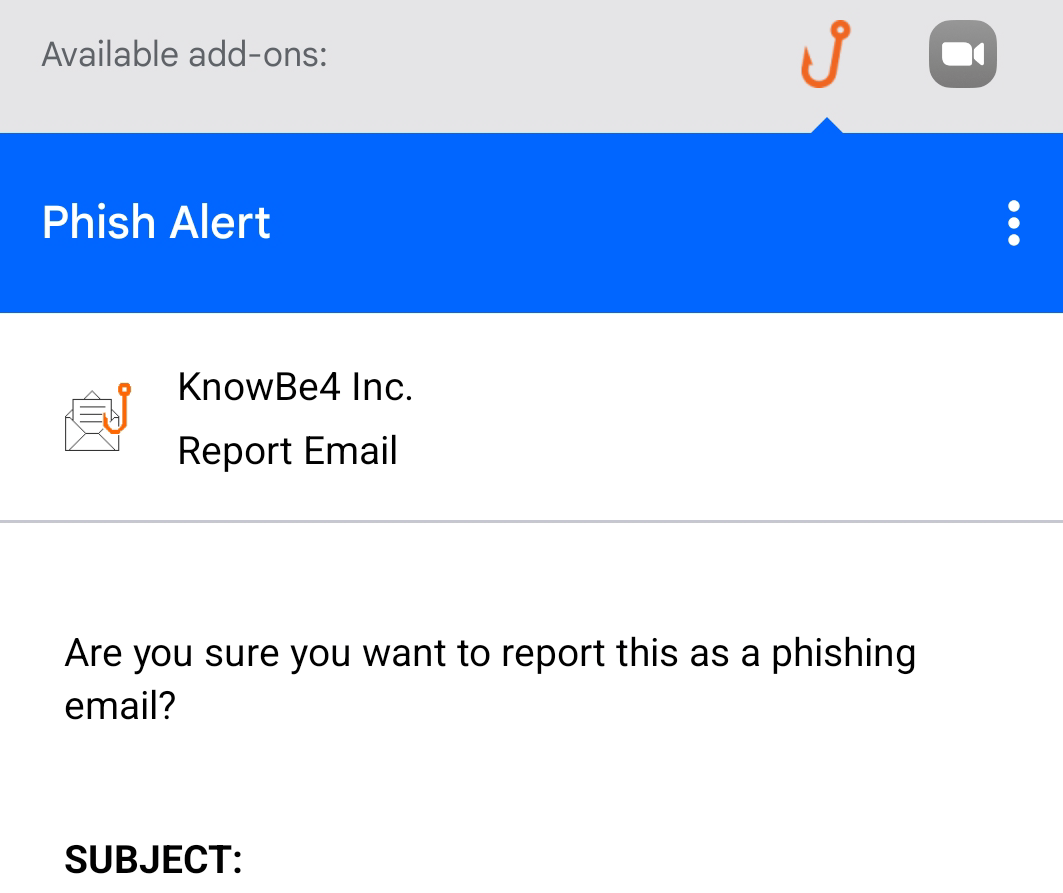
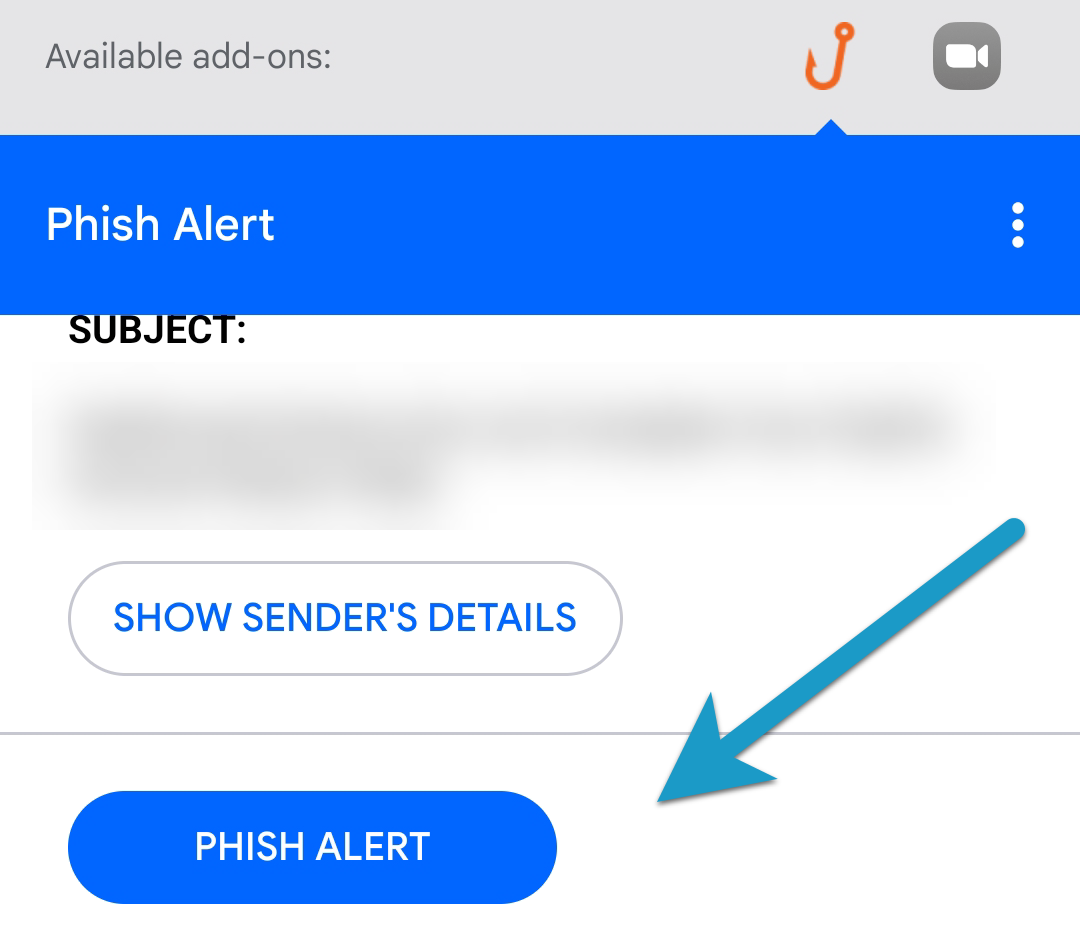
Under the "Available add-ons" section, tap the Phish Alert icon (the grey fishhook.)
-
Scroll down slightly in the add-on pane that appears.
-
Tap the blue Phish Alert button to confirm.
The email will instantly be deleted from your mobile inbox and forwarded to our security team for review.
❓ Frequently Asked Questions
|
Question |
Answer |
|
Can I report multiple emails at once? |
No. Each suspicious email must be opened and reported individually so our analysis tools can scan them properly. |
|
What if I report an email by mistake? |
Don't sweat it! If our team reviews the email and finds that it is legitimate, we will release it and let you know it is safe. |
|
I can't click the hook icon in my Spam or Trash folder! |
Correct. The PAB is disabled inside the Spam and Trash folders. If you want to report something from there, you must first move it back to your Inbox. |
|
Is this the same thing as Gmail's "Report Spam" button? |
No. Gmail's standard "Report Spam" button just trains Google's generic filters. The Phish Alert Button sends the email directly to our local ITS Security Team so we can actively protect our campus network. |